Setup All games
How to Play Our Browser Games with a PS5 or Xbox Controller
Connect a PS5 DualSense or Xbox controller to a Mac or Windows PC by USB or Bluetooth, wake it in the browser, and learn the buttons in each of our games.
What you need
Most of the free browser games on this site can be played with a game controller instead of the keyboard. A PS5 DualSense or an Xbox controller works on a Mac or a Windows PC, through a USB cable or Bluetooth. There is nothing to install. The browser reads the controller directly.
- A PS5 DualSense or Xbox controller. Other controllers may work, but these two are the ones the games are built for. Bluetooth needs an Xbox controller that has Bluetooth; any Xbox controller works by cable.
- A USB cable, or a computer with Bluetooth. The DualSense uses USB-C.
- A desktop browser. Chrome or Edge is the safest choice; Safari on a Mac works with PS5 and Xbox controllers too.
- A computer. Phones and tablets aren't covered here.
Connect the controller
By cable (Mac or Windows): plug the controller into the computer. That's it. A cable is also the quickest fix when Bluetooth acts up.
- 1
Put the PS5 controller in pairing mode
Hold the PS button and the Create button (the small one left of the touchpad) together for about three seconds, until the light around the touchpad flashes quickly.
- 2
Put an Xbox controller in pairing mode
Turn it on with the Xbox button, then hold the small pair button on the top edge until the Xbox button flashes quickly.
- 3
On a Mac
Open System Settings (System Preferences on older macOS), go to Bluetooth, and click Connect next to the controller when it appears.
- 4
On Windows
Open Settings, go to Bluetooth & devices (Devices on Windows 10), choose Add device, then Bluetooth, and pick the controller from the list.
After the first pairing you don't repeat these steps. Press the PS or Xbox button and the controller reconnects to the same computer.
Press a button so the browser sees it
Browsers keep connected controllers hidden from a page until you press a button while that page is open. This is a privacy rule, and it catches almost everyone the first time. Open the game, click on the page once so it has focus, then press any button on the controller.
In Boom Box, Tagroo, Mole Holes and Pod Box a short message says "🎮 PS5 controller connected" (or Xbox controller) and a chip in the corner of the menu shows it. Settings → Controllers has a live tester where the buttons light up as you press them, a choice of which controller is which player, and a rumble test. Wave Battler shows "Controller connected", and Toot Tots shows each controller on its match screen.
Which games support controllers
| Game | Controller support | Main buttons |
|---|---|---|
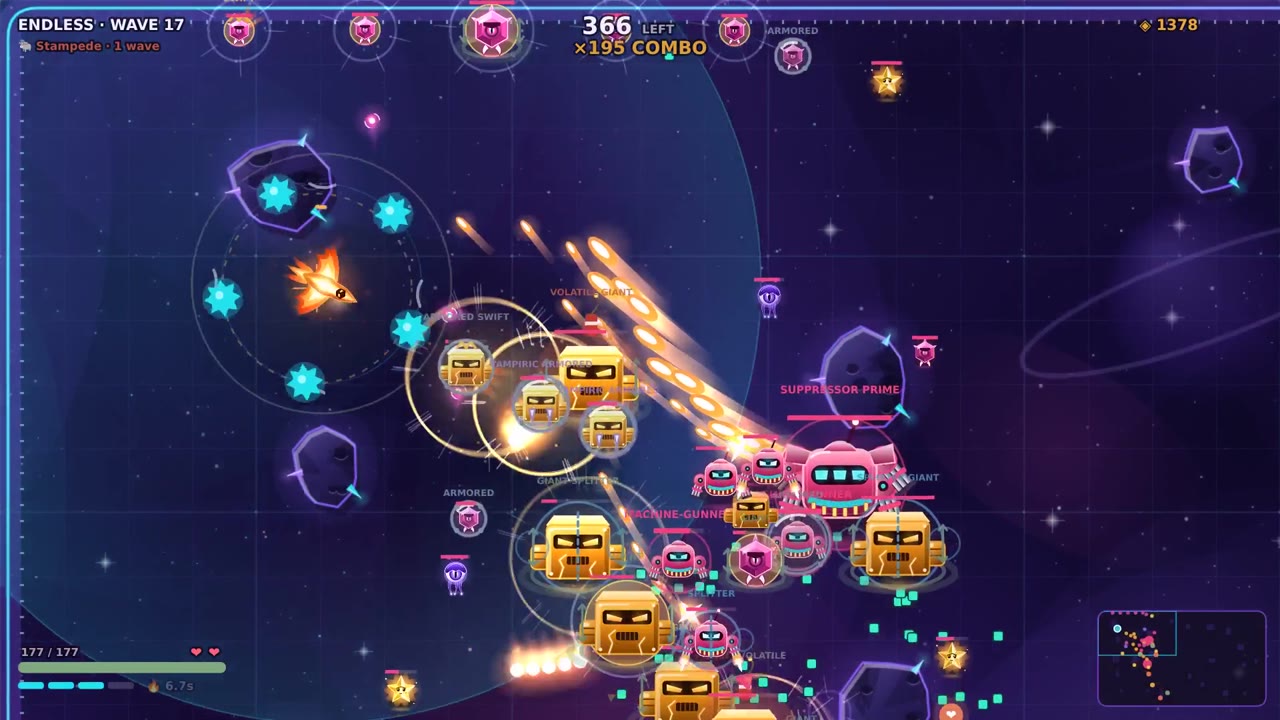
| Wave Battler | Full play, plus couch co-op with two controllers | Left stick move (your gun fires on its own) · ○ / B dash · ✕ / A ability · Options pause |
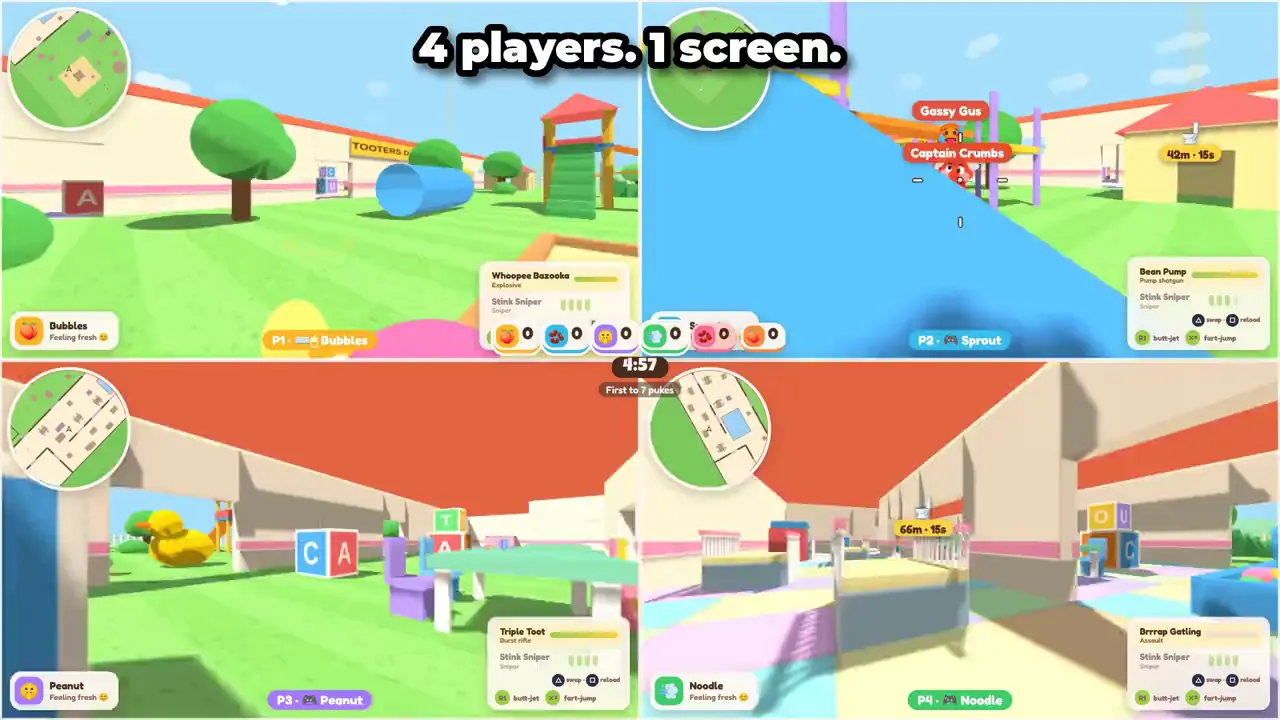
| Toot Tots | Full play, up to four controllers in split screen | R2 toot · L2 aim · △ sniper · ✕ jump · R1 butt-jet · Options pause |
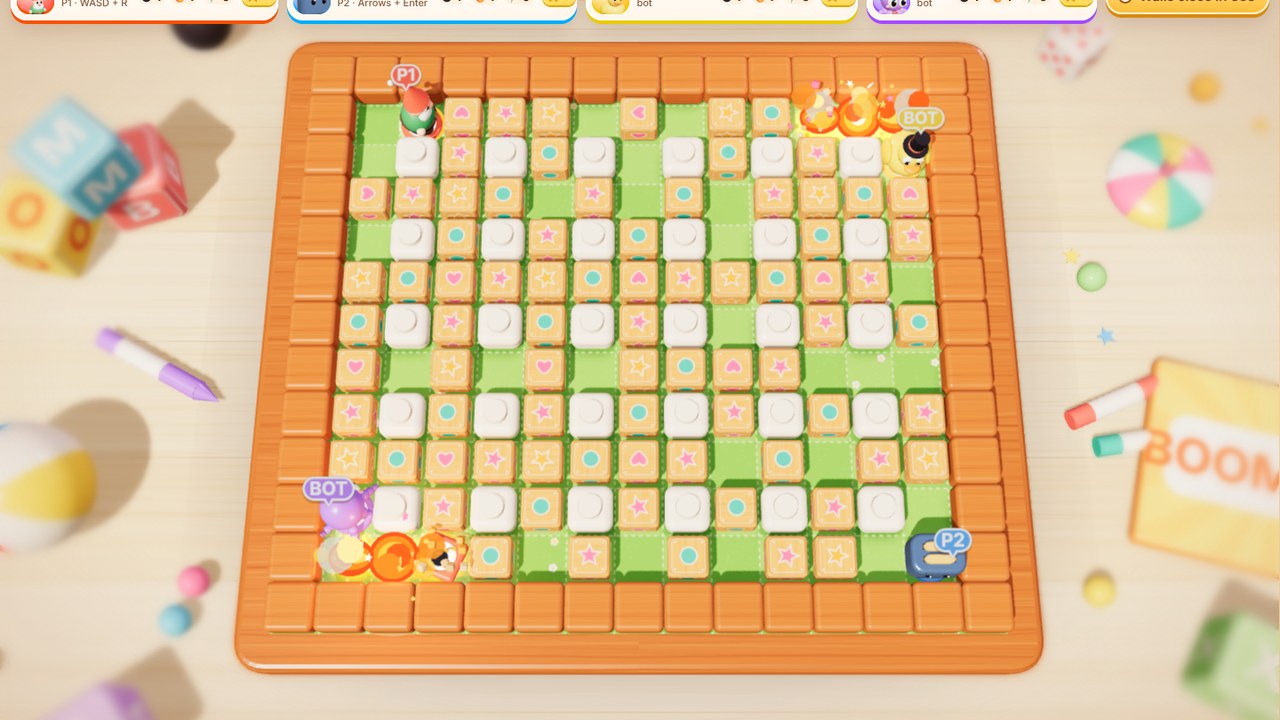
| Boom Box | Full play, one controller per player | Stick or D-pad move · ✕ / A, □ / X or R1 bomb · Options pause |
| Tagroo | Full play, one controller per player | Stick or D-pad move · ✕ / A jump · □ / X or R1 dive · Options pause |
| Mole Holes | Menus only | Play the game itself with the mouse or by touch |
| Pod Box | Menus only | Look after the tub with the mouse |
Wave Battler also uses the D-pad: up opens your build, down turns the sound on or off. Click both sticks together for full screen. In Wave Battler's menus, ○ / B selects and ✕ / A goes back.
Toot Tots maps every action: right stick looks, □ / X reloads the sniper, ○ / B crouches, clicking the left stick sprints and L1 wiggles. The full table is in the Toot Tots beginner's guide.
Boom Box and Tagroo share the same menus: the D-pad or stick moves, ✕ / A chooses and ○ / B goes back. Button names change to match your controller, so an Xbox pad shows A, B, X and Y. The Boom Box guide and Tagroo guide list the keyboard keys too.
Several controllers and split screen
- Boom Box and Tagroo: controllers go to players in the order they connected. Change it in Settings → Controllers. To have Player 1 on the keyboard and Player 2 on a pad, set Player 1 to "Keyboard only" and the first controller goes to Player 2.
- Toot Tots: on the match screen, press ✕ / A on each new controller to add a split-screen player, up to four. Player 1 can keep the keyboard and mouse.
- Wave Battler couch co-op: two heroes share one screen, each with their own controller. With only one controller, it belongs to the player picked on the couch screen and the other plays on the keyboard.
- In all four of these games, a keyboard player and a controller player can share a match.
Troubleshooting
- The game doesn't react. Click the page, then press a button. Browsers don't read controllers for a tab that's in the background or doesn't have focus.
- It worked, then stopped. If the controller turned itself off or lost its Bluetooth link, press the PS or Xbox button to reconnect it, then any button in the game.
- Buttons are mixed up. The games use the standard controller layout. Not every browser gives every controller that layout. Try Chrome or Edge, or use a cable.
- One controller shows up twice. Apps that remap controllers can create an extra virtual pad. Close them while you play, or pick the right one in Settings → Controllers.
- No rumble. Rumble depends on the browser and the controller. Chrome and Edge usually support it. Without it, the games play exactly the same.
- Online play with a pad. In Boom Box and Tagroo online, your controller drives your own fighter, the same as the keyboard. Each player uses the controller on their own computer.
Controller questions
Can I use a PS5 controller in a web browser?
Yes. Connect it by USB or Bluetooth, open the game, click the page and press any button. Chrome, Edge and Safari can all read a DualSense.
Why doesn't my controller work in the browser?
Usually the browser hasn't seen a button press yet. Click the game page once, then press a button. If it still doesn't show, reconnect it or try a USB cable.
How do I connect a PS5 controller to a Mac?
Hold PS and Create until the light flashes, then open System Settings → Bluetooth and click Connect next to the DualSense.
Can two people play with two controllers?
Yes. Boom Box and Tagroo give each player their own controller, Toot Tots supports up to four in split screen, and Wave Battler's couch co-op uses two.
Does an Xbox controller work too?
Yes. Xbox controllers work the same way, and the games show A, B, X and Y instead of the PlayStation symbols.